
What is digital signage?

Digital signage means preparing, scheduling and delivering screen content from one piece of software. This guide covers the parts of a system, where it is used, cloud versus self-hosted, and what to check before you choose.
Walk into a hotel lobby, a hospital waiting room or a busy café and a screen is probably telling you something: today's events, the weather, the menu. Behind each of those screens sits the same idea: decide in one place what every screen shows, and let software make it happen on time. This guide explains what digital signage is, the parts of a system, where it earns its keep and what to check before you choose digital signage software, including whether self-hosted digital signage suits you better than a cloud subscription. A checklist at the end sums it up.
What is digital signage?
Digital signage is the practice of preparing, scheduling and delivering content to screens from central software. The screen might be a television above a counter or a portrait display in a lift. What makes it digital signage rather than just a TV is the management layer: content changes in one place, each screen knows what to play and when, and the system can tell you afterwards what actually played.
Unlike a printed poster, a screen can drop a promotion the moment it ends, switch from breakfast to lunch at eleven and carry an urgent announcement to every floor within seconds. A USB stick plugged into a TV is not the same thing either. Every change means a walk to the screen, and nobody knows for certain which file is playing where. With proper software you upload content once, set rules for which screens show it and when, and get a report of what each screen really played.
Is a digital signage program the same as digital signage software?
Yes. Some people search for a "digital signage program", others for "digital signage software". The answer is the same: software that manages screens from one place, and players that follow its rules.
The parts of a digital signage system
One screen in a café or hundreds across a campus, the same five parts are involved. Looking at them one at a time makes products easier to compare and faults easier to find.
Content
Everything people see: images, videos, web pages, scrolling text and widgets. A widget is a small piece of content that fetches its own data, such as a clock, a weather forecast, exchange rates, a countdown or an RSS news ticker.
Management software (CMS)
This is where content is uploaded, arranged and scheduled, usually in a web-based panel. Users, permissions, the calendar, reports and the list of screens all live here. When people talk about digital signage software, this is mostly the layer they mean.
Player
The player runs next to or inside the screen. It receives the program, downloads the content and plays it by the rules. It might be an Android app, a package on a Samsung signage display or a full-screen browser. It also decides what happens when the network drops, so it matters more than it first appears.
Screen
A consumer smart TV, a professional signage display, a monitor mounted in portrait, or a tablet. Professional displays are built for long operating hours. Consumer TVs usually cost less, but settings such as energy saving and automatic standby need attention.
Network
The link between player and management software: wired Ethernet, Wi-Fi or a mobile connection. If the server sits in the same building, you may not need the internet at all. No network is perfect, so a good player keeps playing when the connection fails.
Where digital signage is used
Any place with a screen can use it, but it pays off most where information changes often and many people look at the same thing.
- Hotels: a lobby welcome screen with world clocks, weather and exchange rates, portrait promotions in the lifts, directions to meeting rooms.
- Hospitals: information in waiting rooms, wayfinding on each floor, on-duty pharmacy notices, and an emergency announcement that reaches every screen when needed.
- Restaurants and cafés: digital menu boards where prices change from the panel and breakfast gives way to lunch on a time rule.
- Shops and shopping centres: window and checkout screens, a campaign calendar, different content per branch or city.
- Offices and factories: staff announcements, visitor welcome screens, news tickers, shift and safety reminders.
- Lifts and elevators: short content in portrait. Wi-Fi inside a lift car is often weak, so this is where offline playback is tested hardest.
Sample scenarios for each sector are collected on our solutions page.
Cloud or self-hosted?
Digital signage software comes in two forms. Cloud software runs on the vendor's servers; you log in through a browser and usually pay a monthly subscription per screen. Self-hosted digital signage runs on a server of your own.
The cloud gets you started quickly: there is no server to install and maintenance is the vendor's job. In return, your content, user accounts and play logs sit on someone else's servers, you need the internet to reach the panel, and the monthly bill grows with every screen you add. Self-hosting keeps the data inside your organisation and can even run on a local network with no internet access, but backups and server updates become your responsibility.
| Topic | Cloud subscription | Self-hosted |
|---|---|---|
| Getting started | Create an account and go | Install once on your server |
| Cost model | Usually monthly, per screen | Depends on the licence; one-off with MIA |
| Where data lives | The vendor's servers | Your own server |
| Internet | Needed for panel and screens | A local network can be enough |
| Maintenance and backups | The vendor | You, with tools that help |
| Data protection | One more party processes your data | Data stays in-house |
The right choice depends on how many screens you have, the IT staff you can call on and where your data has to stay. Hospitals, public bodies and companies with strict data rules often lean towards running their own server.
What to look for in digital signage software
Product pages tend to look alike. The differences show up in daily use and on the day something breaks. These are the points worth testing yourself during a trial.
Scheduling
Can you give an item a date range, hours of the day and weekdays? Can an announcement appear every third loop, or be capped per day? Also ask which clock the schedule follows. TV clocks are often wrong, and a player that uses the server's time switches content on time even when the screen's clock drifts.
Offline playback
Pull the network cable and watch the screen. Does playback carry on, or does an error message appear? Then cut the power and restore it: can the player start up and play the last program without reaching the server? These two tests tell you more about behaviour in the field than any brochure.
Device support
Being able to use the screens you already own saves real money. Check which of these are supported: Android TV and boxes, Samsung professional signage displays, smart TV browsers, Windows or Linux PCs, Raspberry Pi. Being tied to one kind of hardware limits you later.
Users and roles
The person who prepares content does not have to be the person who publishes it. Look for roles such as administrator, editor and read-only viewer, a limit on login attempts, and an audit log showing who changed what and when.
Reports
If you run campaigns or sell advertising space, you need to know how often and for how long each item played on each screen. This is called proof of play, and CSV export lets you take the figures into your own spreadsheets.
Licence model
Are you paying a monthly fee per screen, or buying a one-off licence? Does the licence have to contact a server on the internet to stay active? Most importantly, what happens to the screens when the licence expires? In some systems they may stop or show a warning. Ask before you sign.
Deployment control and emergencies
Do you decide when a change reaches the screens? Nobody wants a half-finished slide on every screen because someone pressed save. In an emergency you want the opposite: a separate emergency program that reaches every screen with one click and hands back to normal playback when you switch it off.
How MIA does it
MIA is self-hosted digital signage software with a Turkish interface, and its workflow has four steps. Content goes into folders. Programs arrange those folders into scenes and zones, with ready layouts for landscape and portrait or zones you draw yourself. Screens are paired with a 6-character code shown on the screen. Changes wait under a pending deployment counter until you send them with one click, and every deployment records each screen's status.
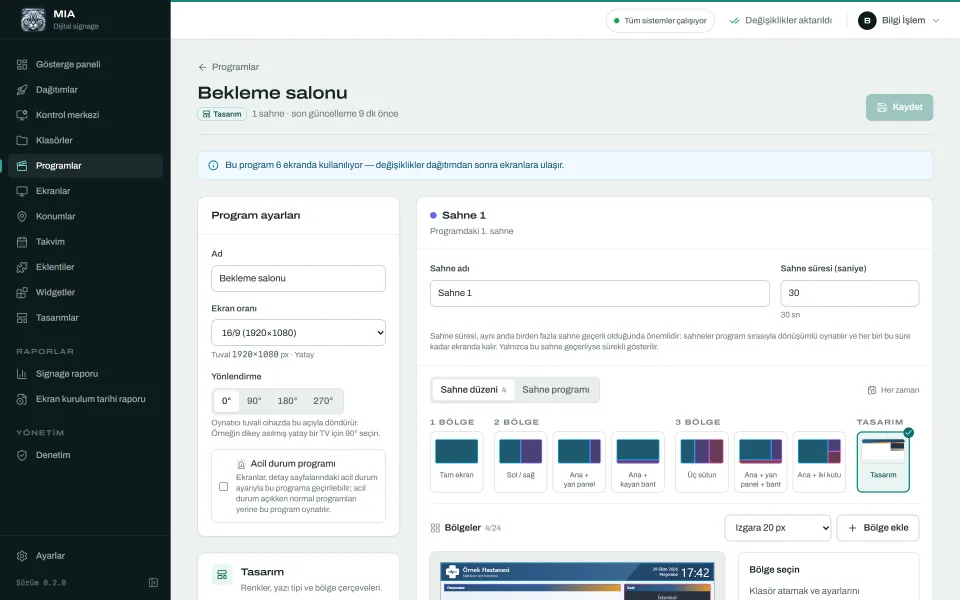
The player applies schedule rules itself, using the server's clock, so screens switch on time even while offline. It keeps the last program in memory and local storage: if the network or the server goes down, playback continues and no warning appears on screen. The Android app and the Samsung Tizen package also store videos on the device itself.
For the server you can choose a Windows desktop app with a single installer or a Linux server running Docker. One server has been tested with 100 screens. Six ready designs and ten widget kinds get a first program running in minutes. The licence activates offline and MIA never phones home. If a licence lapses, only the panel turns read-only; the screens keep playing.
In short, three promises: your data stays with you, there is no monthly fee per screen, and playback continues during outages. You will find the full list on the features page, supported hardware on the devices page and the plans on the licence page.
A checklist before you decide
- How many screens do you have today, how many will you have soon, and which ones are portrait?
- Will your existing screens work, or do you need new hardware?
- Where will the data live: in the vendor's cloud or on your own server?
- Does playback continue when the network fails and when the power comes back? Have you tried it yourself?
- Do changes go live only when approved, and is there a separate emergency program?
- How many users and which roles do you need, and is there an audit log?
- Is there a proof of play report with CSV export?
- Will you be told when a screen goes offline?
- Is the fee monthly per screen or one-off? What happens to the screens when the licence ends?
Set up well, digital signage runs itself: you prepare content once, the screens know what to show and when, and a report tells you how it went. When choosing software, trust tests on your own screens over claims on a product page. To try MIA on your own displays, get a 30-day trial licence, which covers 5 screens by default.
Try MIA: 30-day trial license
Install it on your own server, pair your screens and use the whole panel for 30 days.
Get a trial license