
Cloud or self-hosted digital signage?

The first decision in choosing digital signage software is where it will run. This guide compares a cloud subscription with a self-hosted digital signage CMS on cost model, data location, outages and IT effort.
Ask a digital signage vendor for a price and the answer is usually a monthly figure per screen. Before comparing figures, there is a more basic decision to make: where will the software run? In one model the vendor runs it in their cloud and you pay a subscription for every screen. In the other you install a self-hosted digital signage CMS on your own server and license it once. Both work, but they differ in long-term cost, where your data ends up, how they cope with outages and how much they ask of your IT team. This guide compares them fairly and ends with a decision table.
The two models in brief
With a cloud service (SaaS), the vendor operates the servers. You open an account, pair your screens with it and upload content through a browser. Updates, backups and maintenance are the vendor's job, and you pay a monthly or yearly subscription for each screen.
With an on-premise or self-hosted system, the software runs on a computer or server your organisation controls, or on a virtual server you rent. Content, the screen list, user accounts and reports all live there. The license is usually bought once and covers a period of time and a number of screens.
How digital signage pricing works
We are not quoting figures here: the real difference lies in how each model behaves over several years.
Subscription per screen
- Low cost to start: you can begin with a handful of screens straight away.
- Every new screen adds to the monthly bill. Multiply screens by months and the total grows quickly.
- It is an ongoing operating expense rather than a purchase, which suits some budgets well.
- What happens when the subscription ends varies by service, so read that clause carefully.
One-time license
- You pay once, based on the number of screens and the license period. No invoice arrives every month.
- Server hardware or a virtual server rental belongs in the sums, although an existing computer or server is often enough.
- Installation, training and support may or may not be included. Ask for it in writing.
- Costs stay predictable as you add screens, because no screen carries its own monthly charge.
For a fair comparison, work out the total cost over three years: license or subscription, hardware, installation, IT time and support. A single monthly figure can mislead, especially if your screen count will grow.
MIA follows the second model. Licenses are one-time, priced by screen count and duration, with no monthly fee per screen. Plans include a trial license, 1-year, 3-year and custom terms, and prices are given by quote. Details are on the license page.
Where does your data live?
Screen content often looks harmless: a promotion, an announcement, today's menu. The management side collects more: user accounts and email addresses, audit logs showing who changed what and when, and reports of what played on which screen.
In a cloud service this data sits in a data centre the vendor has chosen. If that is abroad, data protection rules such as KVKK in Turkey or the GDPR in Europe raise questions about international transfers. They can be answered, but they take contracts, privacy notices and sign-off from your legal team. Ask too where backups are kept and how data is deleted when the service ends.
On your own server, the data does not leave your organisation. You decide where the server sits, who can reach it and how long records are kept. With MIA even the license is activated offline: there is no license server and the software never phones home. There is no default admin password, and passwords are stored hashed with scrypt. The security and privacy page explains more. Legal assessment is specific to each organisation; this article only covers the technical difference.
What happens when the internet goes down?
Screens tend to fail at the worst moment, so think an outage through in advance.
With a cloud service
Screens receive content and commands over the internet. Many cloud players cache content and keep playing through short interruptions. While the outage lasts, though, you cannot push new content or see your screens, and if your own line is down you cannot reach the panel either.
With a self-hosted server
If the server and screens share a local network, losing the internet does not affect playback, and the panel stays reachable locally. The MIA player keeps the last program in memory and local storage, so playback continues even if the server or network drops. The Android app stores videos and images on the device and keeps a copy of the player page, so after a power cut it starts and plays even when the server is unreachable. No warning appears on screen.
Some things still need the internet. The server fetches weather, exchange rates and RSS news, and during an outage screens keep showing the last good values. YouTube and external web pages will not play without internet. Changes made while a screen was offline are picked up when it reconnects.
IT effort: updates, backups and certificates
This is where the cloud is strongest: servers, updates, backups and certificates are the vendor's problem. On your own server those jobs are yours, so the question is how much work they really are.
| Task | Cloud subscription | Self-hosted (MIA) |
|---|---|---|
| Installation | Create an account | One install script with Docker on Linux, or a single installer on Windows |
| HTTPS | Handled by the vendor | Automatic certificate with your own domain (Let's Encrypt), or local network mode without a domain |
| Backups | Handled by the vendor | Automatic backups on Linux; the last backup shows in the panel |
| Updates | The vendor decides when | You update the server; screens refresh from it with the "Yazılımı güncelle" (update software) command |
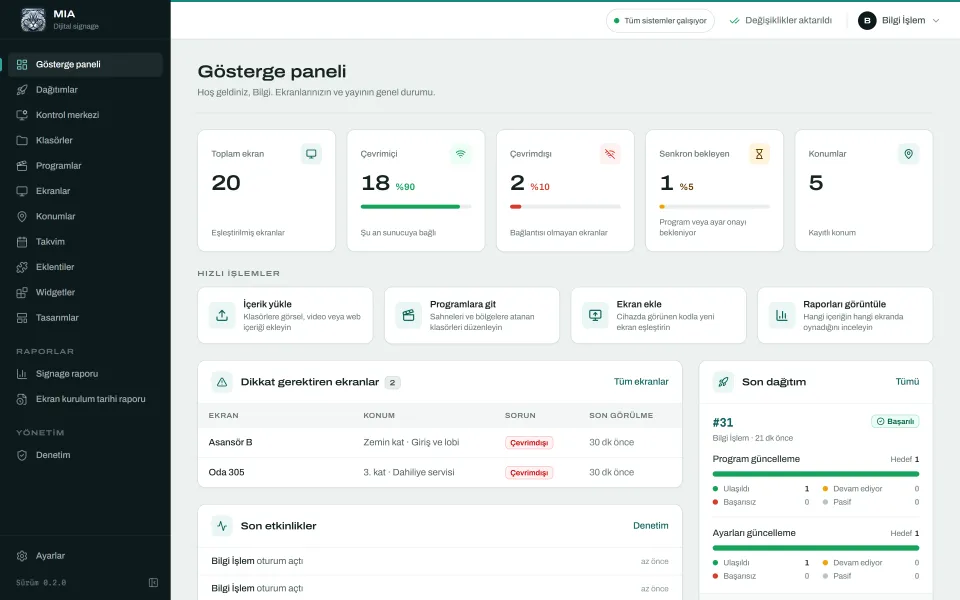
| Monitoring | The vendor's dashboard | Dashboard, system status page, offline alerts by webhook and Telegram |
| Disk space | Quota set by your plan | Uploads are refused when space runs low; play log retention is adjustable |
Running your own server is not zero effort, but it is not a constant chore either: check the system status page now and then, install updates at a planned time and copy backups to a disk outside the server.
Deployment options and scale
Self-hosted does not have to mean a server room. There are three common ways to run MIA:
- Windows desktop app: one installer, with the server running in the background behind a tray icon. It is the easiest start for small businesses. The app is not code-signed, so Windows SmartScreen may warn on first run.
- Linux server: one command with Docker and Caddy. With your own domain, HTTPS is set up automatically; without one, it runs on the local network by IP address. The first admin account is created with a one-time setup key.
- A virtual server you rent: the Linux install runs just as well at a cloud provider. The machine sits in someone else's data centre, but the account, data and access are yours.
The server options page covers each route. If you would rather have the vendor host the server, that can be discussed on request.
On scale, adding a screen in the cloud is an account setting; on your own server you need to know what one machine can carry. MIA is designed for about 100 screens per server and has been load-tested with 100.
Does a lapsed license switch the screens off?
With subscriptions the answer depends on the service. Ask about self-hosted products too.
In MIA the license only affects the panel. When it lapses, the panel becomes read-only: no new pairing and no new deployments. The screens keep playing and never show anything about licenses.
Activation is offline too. You copy the installation code from Ayarlar › Lisans (Settings › License; the panel is in Turkish), send it to the seller and enter the license code you receive. The license is bound to that installation and needs no license server.
Which model suits whom? A decision table
| Your situation | Better fit | Why |
|---|---|---|
| A few screens, no IT team, and you want to start today | Cloud, or the Windows app | No server to manage, or just one installer |
| Hospital, bank or public body where data must stay in-house | Self-hosted | Data, access and retention stay under your control |
| Screens on a closed network without internet access | Self-hosted | Playback and the panel run on the local network |
| Your screen count will grow over the years | One-time license | New screens do not add to a monthly bill |
| Budget can only be approved as a monthly operating cost | Subscription | Payments are spread over the months |
| Screens spread across many cities with no shared network | Cloud, or a rented virtual server | Screens need one central address reachable from anywhere |
| Nobody should look after a server, but the data must stay under your control | A rented virtual server, or a talk with the vendor | A vendor-hosted option can be discussed on request |
Questions to ask before you decide
- What will we have paid in total after three years?
- What do the screens show when the subscription or license ends?
- Where, and on whose servers, are our data and backups kept?
- How do playback, the panel and alerts behave when the internet goes down?
- Who installs updates, and what happens if one goes wrong?
The quickest way to answer these for your own setup is to try it. MIA's 30-day trial license covers 5 screens by default, so you can install it on an existing computer and play real content on the screens you already have.
Conclusion
The cloud is a comfortable route if you do not want to deal with a server and want to start quickly with a few screens. Self-hosting is the sounder foundation if you care about keeping data in-house, running on networks without internet access and keeping costs predictable as your screen count grows. MIA takes the second route: your data stays with you, there is no monthly fee per screen and playback continues during outages. Whichever you choose, base the decision on the three-year total cost and a realistic outage scenario, not on a single monthly figure.
Try MIA: 30-day trial license
Install it on your own server, pair your screens and use the whole panel for 30 days.
Get a trial license